Xbox Series S/X Settings
How to configure Xbox Series S/X for 2K Mate (PS5 users can skip)
Xbox Series S/X Settings
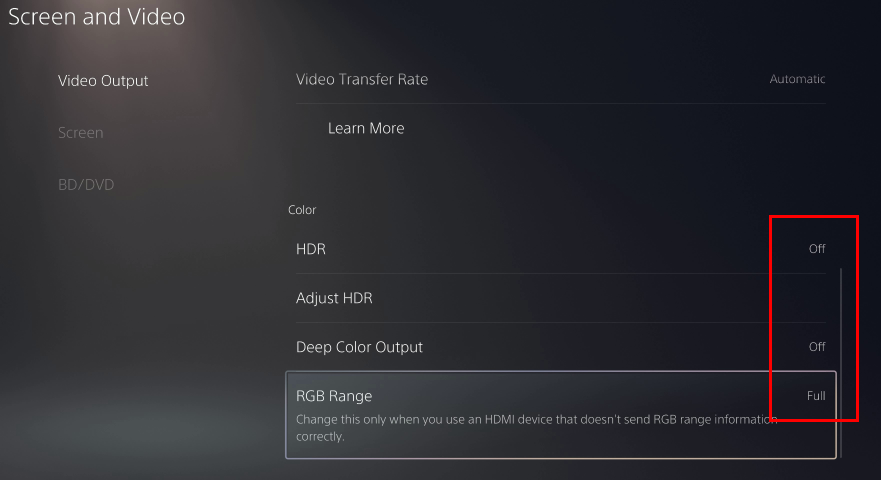
PS5 users can skip this section. Go to PS5 Setup.
XBOX Settings
| Setting Path | Value |
|---|---|
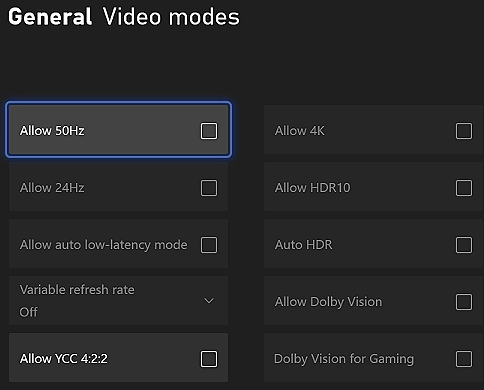
| General > TV & Display > Video Modes | All off |
| General > TV & Display > Video Fidelity & Overscan | Configure as needed |
| Devices > Remote Features | Enable |
| Accessibility > High Contrast | Off |
Install ViGEmBus
Download and install ViGEmBus driver:
XStreaming
Download and install XStreaming:
- https://github.com/Geocld/XStreamingDesktop/releases
- File name:
XStreaming-Setup-x.x.x.exe
Prerequisites
- Make sure your PC and Xbox are connected to the same router
- Log into your Xbox account in XStreaming
XStreaming Settings
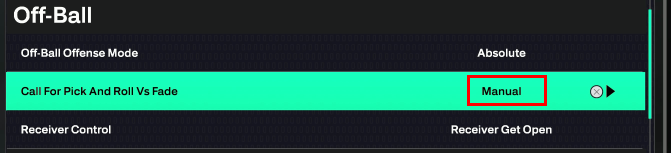
- Settings > Base — Configure base settings
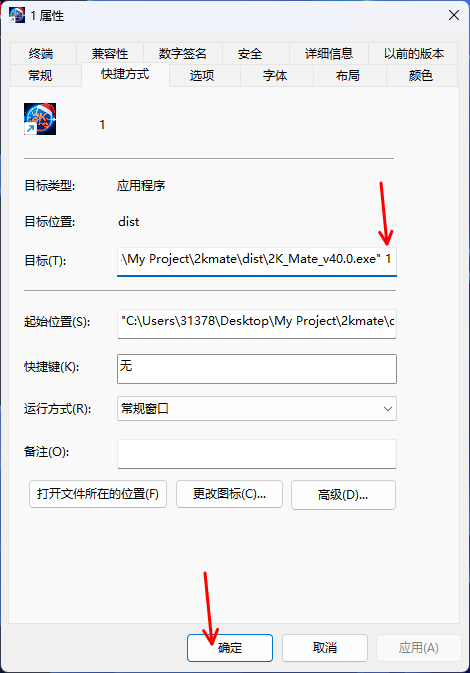
- Settings > Streaming — Configure streaming quality
- Settings > Gamepad — Configure gamepad mapping
- Settings > Others > Keyboard Mapping — Set up keyboard controls
Using XStreaming to Control Xbox and 2K26
- Close the 2K26 game
- Turn off the Xbox controller power — ensure no controllers are plugged into the Xbox
- XStreaming: Terminal > Find your Xbox > Start Stream
- Once you see the Xbox screen, you can control the Xbox with your keyboard
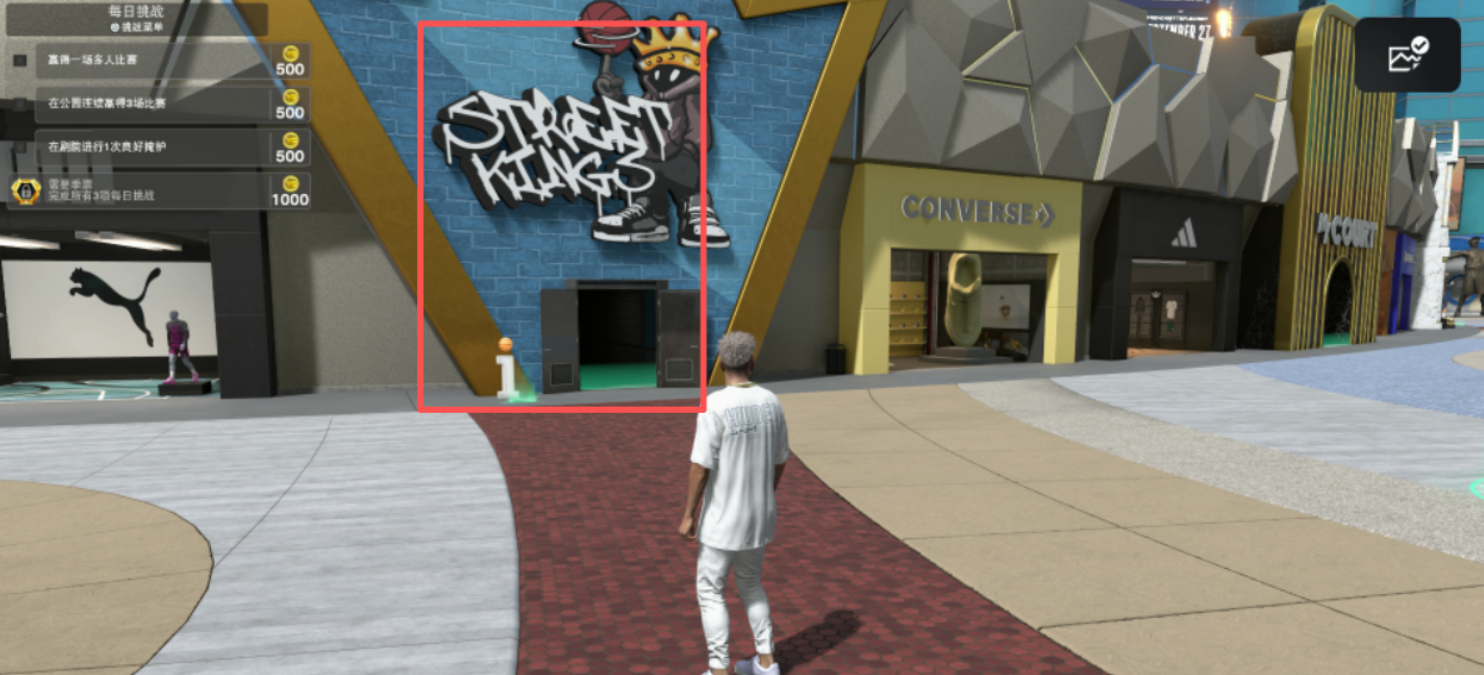
- Use the keybindings you set up to open 2K26 and navigate your player to "Street Kings"
- Your streaming software setup is complete!
Troubleshooting: Character stands still or runs out of bounds
If the script enters the game but your character then stands still or runs off the court, the input is not reaching the game. Most-common fixes:
- Focus the XStreaming window first. Click on the XStreaming window with your mouse before the script starts. Inputs cannot reach an unfocused window.
- Disconnect every controller from the Xbox — wired and wireless. A connected controller will steal input from the stream.
- Disconnect every controller from your PC as well — even an idle controller can claim input focus from XStreaming.
- Don't touch the computer once the script is running. Mouse / keyboard activity moves focus away from XStreaming.
If the character still doesn't move after these four steps, this is a known issue we are actively investigating. Contact support on Discord (waterpipebro) with your username and the activation code / day key you used — the team can issue a credit or replacement pass while we fix it.
Notes and Important Information
- You can plug an Xbox controller into your PC, but this is not recommended as frequently plugging and unplugging can be inconvenient
- Ensure the Xbox is not connected to any controllers (including wireless) while the script is running — this will interfere with the stream
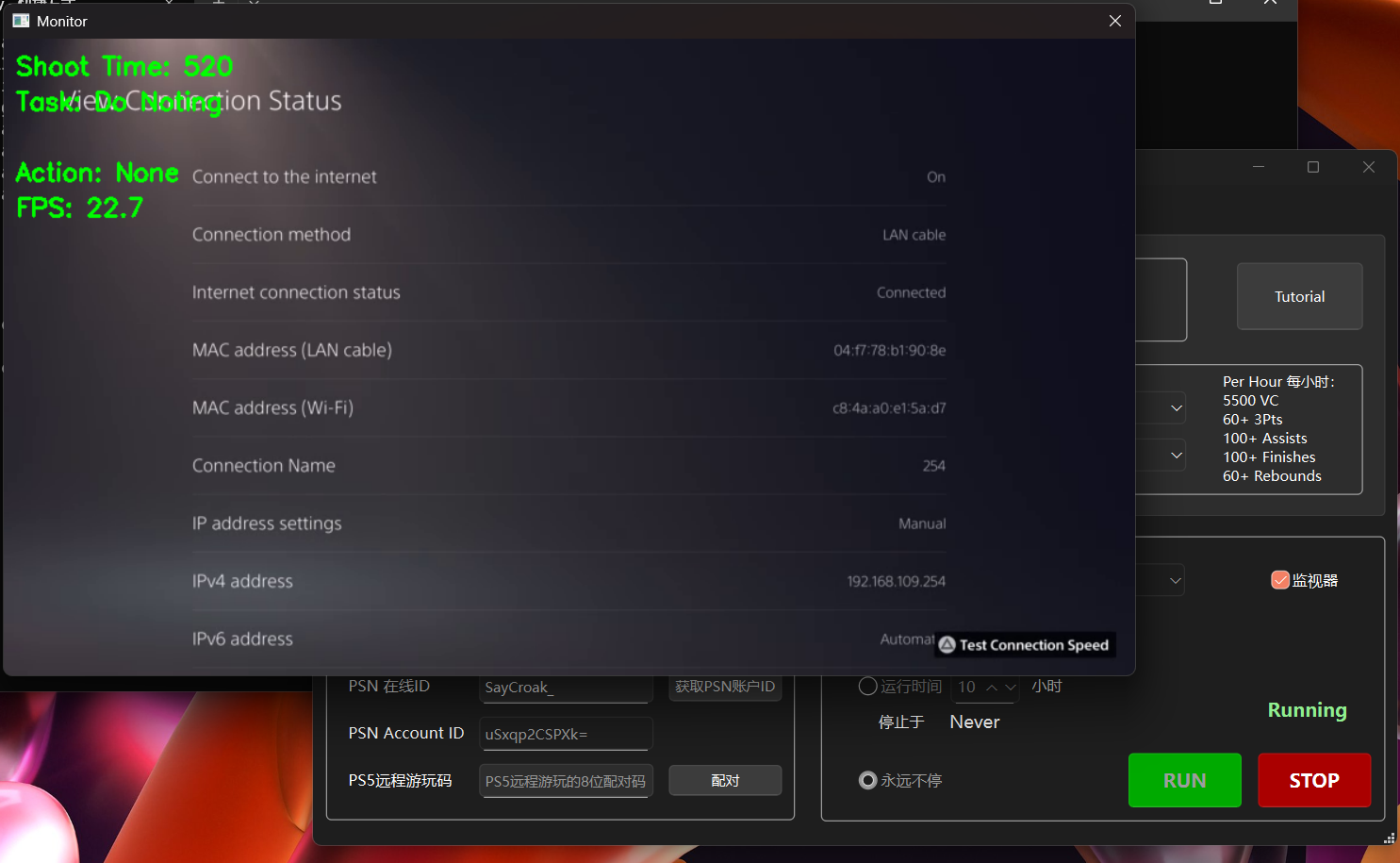
- Once the script starts, do not use the computer — it may affect the script's operation
- If the script seems unresponsive, click on the XStreaming window with your mouse to ensure it has focus